

Can Tablets Make Phone Calls? A Practical Guide
So, can you actually make phone calls on a tablet? The short answer is yes, you absolutely can. But it's not quite as simple as picking up a smartphone. How you do it really boils down to your specific tablet, your mobile plan, and what kind of call you’re trying to make.
It’s less of a "yes or no" question and more about finding the right path for your gear and your needs.
Why Your Tablet Can Be a Great Calling Device
Using a device with a huge screen for a phone call might seem a bit odd at first, but it opens up a surprising amount of convenience. Think of your tablet less as a simple media gadget and more as a central communication hub for your life.
The magic behind this is all about the different ways we can connect. For instance, understanding a little about what VoIP technology is helps you see how internet calling turns your tablet into a legitimate communication tool.
Think of this guide as your roadmap. We'll walk through all the different ways you can place calls, from using a cellular-enabled tablet that works like an oversized phone to just borrowing your existing smartphone's connection.
The Three Main Paths for Tablet Calling
To get started, it helps to understand the core methods you have to choose from. Each one is built for a different situation and comes with its own set of rules.
- Direct Cellular Calling: This is the most phone-like experience you can get. It requires a tablet that has its own SIM card slot and a mobile plan that specifically includes voice service.
- Wi-Fi Calling and Continuity: This clever method uses your smartphone as the engine. Your tablet basically becomes a remote speaker and microphone, piggybacking on your phone's number to make and receive calls over your Wi-Fi network.
- Internet-Based Apps (VoIP): This is by far the most flexible route. Apps you already know, like WhatsApp, Skype, and FaceTime, use your internet connection to make calls, bypassing traditional phone networks entirely.
By figuring out these three approaches, you can transform your tablet from a simple content browser into a seriously versatile tool for staying in touch. The trick is to match the right method to your specific hardware and lifestyle.
This guide will break down each of these options in detail, giving you step-by-step instructions and practical advice. Whether you've got an iPad, a Samsung Galaxy Tab, or another Android device, you’ll find everything you need to start making calls with confidence. We’ll cover it all, from device requirements to fixing common problems, so you have a crystal-clear picture of what's possible.
Understanding Your Tablet Calling Options
So, you're ready to turn your tablet into a communication hub, but where do you even begin? The options are surprisingly varied, and each comes with its own quirks and requirements. Figuring out which path works for you is the first and most important step.
Think of it like choosing how to listen to music. You could tune into a traditional radio, stream from an app over the internet, or just play a song from your phone through a Bluetooth speaker. They all get the job done, but the tech and the experience are worlds apart. Making calls from a tablet is a lot like that.
Let's break down the three main ways you can make calls from your tablet.
Method 1: Cellular Calling
This is the most direct approach, essentially turning your tablet into an oversized smartphone. A cellular-enabled tablet has its own SIM card slot (or eSIM) and the internal hardware needed to connect directly to a mobile network like Verizon or T-Mobile.
When you have a cellular tablet with a voice-and-data plan, it gets its own dedicated phone number. You can make and receive calls straight from the tablet’s native phone app, no smartphone required. This is the only method that lets your tablet act as a true standalone phone, perfect for anyone who wants one powerful device for everything without juggling gadgets.
But be careful—not all cellular tablets are the same. Many are sold with data-only plans, which are great for browsing on the go but won't let you make traditional voice calls. You have to confirm with your carrier that your plan specifically includes voice services.
Method 2: Wi-Fi Calling and Continuity
This method is a clever and incredibly convenient trick, especially if you’re already invested in an ecosystem like Apple’s or Samsung’s. Instead of giving your tablet its own phone number, this feature turns it into a high-tech extension of the smartphone you already own.
Here’s an easy way to think about it: your smartphone is the radio station, and your tablet is just a speaker in another room. The call is actually happening on your phone, but you can answer it and talk through your tablet as long as both devices are on the same Wi-Fi network.
This approach uses your smartphone's cellular service and phone number to route calls over your local Wi-Fi network to your tablet. It’s perfect for answering a call on your iPad while your iPhone is charging across the room.
Features like Apple's "Calls on Other Devices" and Samsung's "Call & Text on other devices" are the most common examples. The setup is usually dead simple, just a few taps in your settings. It’s a seamless way to make sure you never miss a call, even when your phone is out of reach.
Method 3: Voice Over IP Apps
This is by far the most flexible and accessible way to make calls on just about any tablet, whether it’s a Wi-Fi-only model or a cellular one. Voice over IP, or VoIP, is the technology that lets you make voice calls using an internet connection instead of a traditional phone line.
If you’ve ever used apps like WhatsApp, Skype, FaceTime Audio, or Google Voice, you’ve already used VoIP. These services completely bypass cellular networks, sending your voice as digital data over the internet. This means any tablet with a stable Wi-Fi or mobile data connection can become a calling device. If you're diving into these apps, it's helpful to understand what a VoIP phone number is and how it differs from a traditional one.
- App-to-App Calls: Calling someone who uses the same app (like Skype-to-Skype) is almost always free.
- Calling Landlines/Mobiles: Many VoIP services also let you call regular phone numbers for a small fee or through a subscription plan.
This method is fantastic for international calls, group chats, or anyone trying to keep their communication costs down. It’s the universal solution that brings calling capabilities to the widest range of tablets out there.
Choosing the Right Tablet and Plan for Calls
Before you can start dialing from your tablet, you need to make sure you have the right gear. Getting the hardware and mobile plan right from the start is the most critical step, and a wrong move here can lead to a lot of frustration and wasted money. The first big decision comes down to understanding one fundamental difference between the two types of tablets you'll find on the shelf.
You'll see tablets advertised as either "Wi-Fi Only" or "Wi-Fi + Cellular." This isn't a minor feature—it completely dictates what your device can and can't do. A Wi-Fi Only model is like a car that can only drive on your home's driveway; it needs that local network to do anything online. A Cellular model, on the other hand, can hit the open highway, connecting to mobile networks almost anywhere.
Cellular vs. Wi-Fi Only Models
Making the right choice here is absolutely essential. Only one of these can make traditional phone calls all on its own.
- Wi-Fi Only Tablets: These devices simply don't have the internal hardware (a cellular modem and SIM card slot) needed to connect to a mobile network. They are entirely dependent on a Wi-Fi connection for everything internet-related, including making calls through apps like Skype or WhatsApp.
- Cellular Tablets: These models come equipped with all the necessary components to connect to a carrier's network, just like your smartphone. This hardware is the key that unlocks true, native voice calling—as long as you have the right mobile plan to go with it.
This decision tree breaks down the process for you.
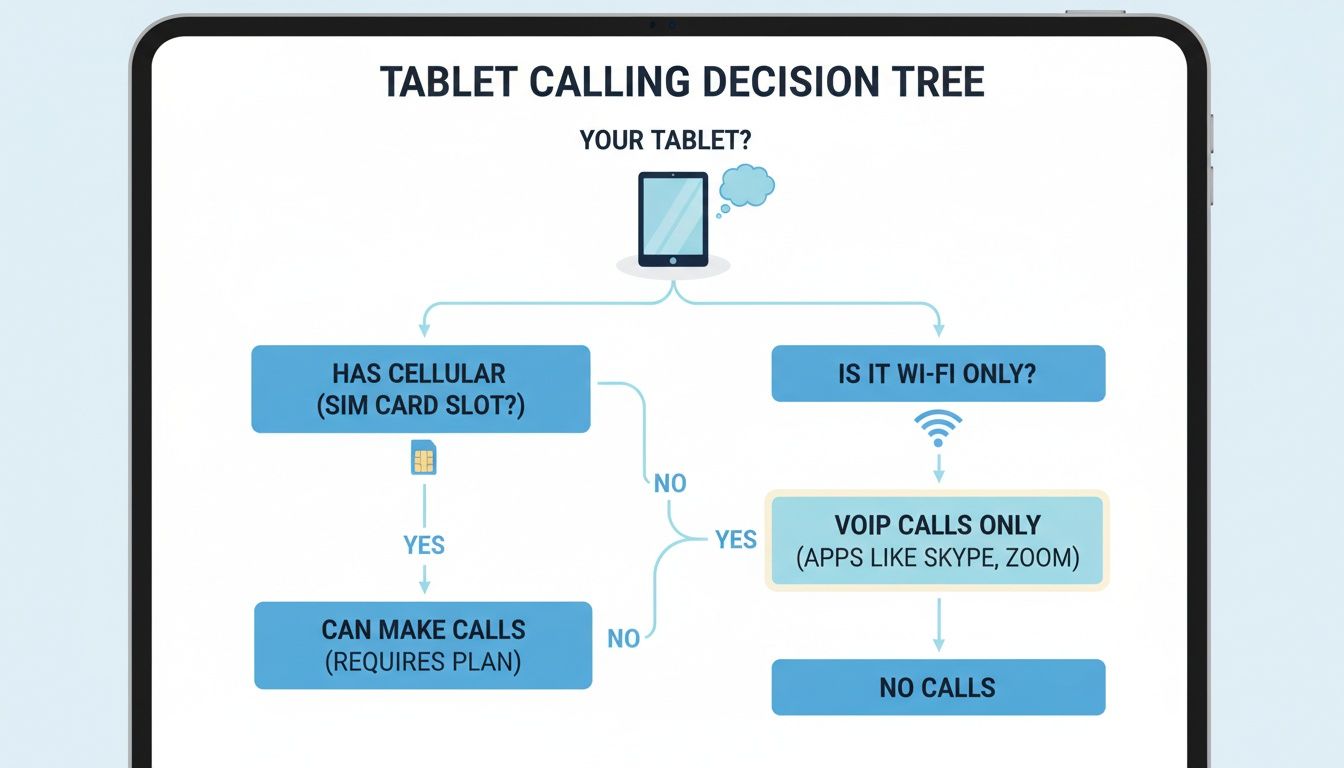
As the chart shows, if you want a true, standalone calling device, a tablet with cellular capability is your only real starting point.
Navigating Mobile Carrier Plans
Once you've picked out a cellular tablet, the next hurdle is the mobile plan. This is where a lot of people make a costly mistake. Just having a cellular tablet isn't enough; you need a plan that specifically includes voice services, not just data.
Many carriers push "data-only" plans for tablets. While these are great for browsing the web on the go, they won't let you make or receive traditional phone calls. You must ask for a plan that treats your tablet like a phone, with both a data allowance and voice minutes. This is what gives your tablet its own phone number so it can function independently. When you're weighing your options, you might find it helpful to compare them with the features found on the best smartphone for business.
Crucial Takeaway: When you talk to a carrier like AT&T or Verizon, be direct. Ask them, "Will this plan allow my cellular tablet to make and receive standard voice calls with its own unique phone number?" This one simple question will save you a world of headaches down the road.
How to Set Up Calling on Your Tablet
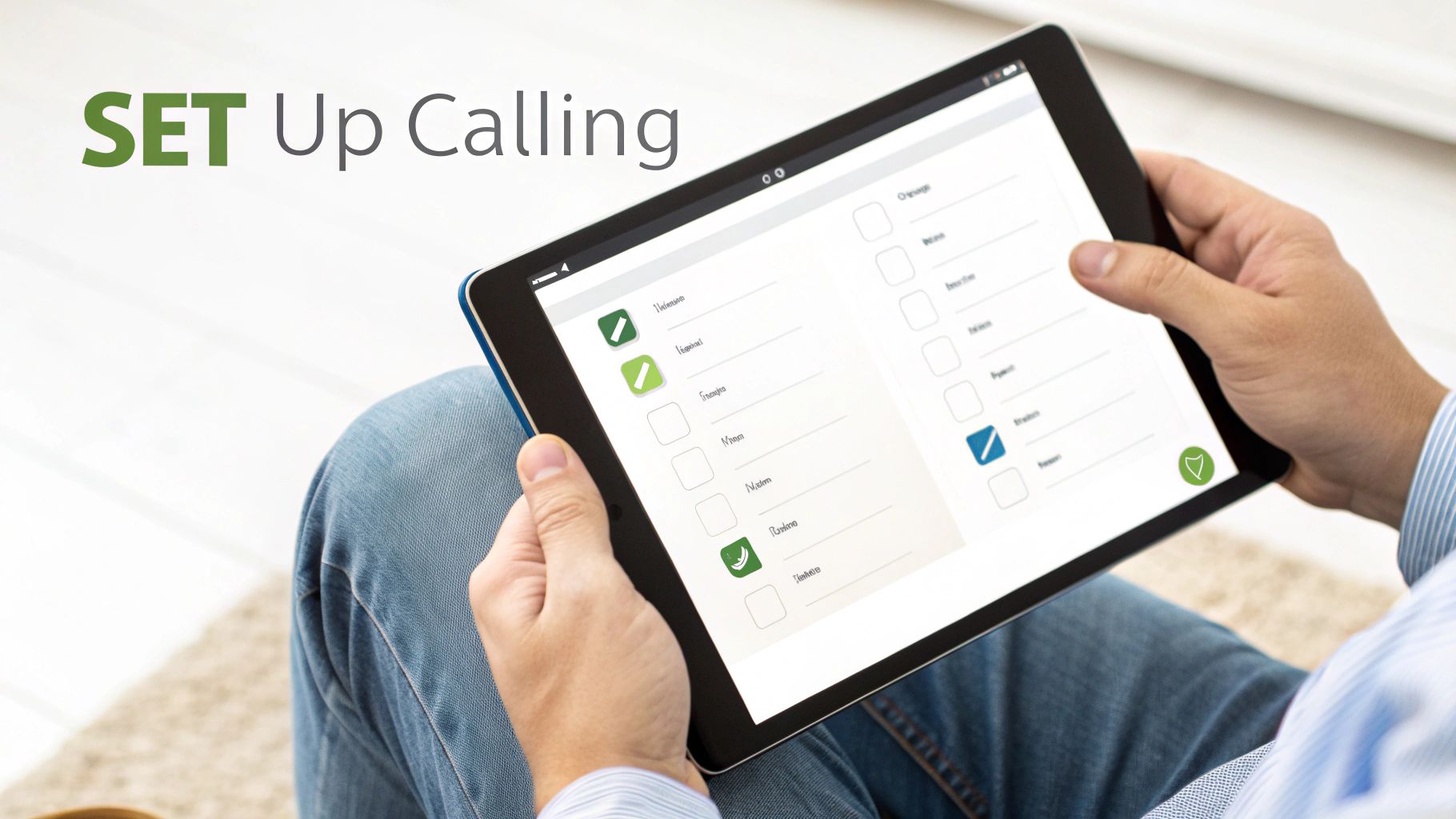
Alright, you understand the theory—now let's get practical. The good news is that setting up your tablet to make calls is usually pretty straightforward. Most of the time, it just takes a few taps inside your settings menu.
Of course, the exact steps depend on your device's operating system. We'll walk through the process for both Apple's iPad and the wide world of Android tablets.
Enabling Calls on Your iPad
If you're in the Apple ecosystem, the simplest way to get calls ringing on your iPad is with a feature called Continuity. It’s designed to make your devices work together seamlessly, and the specific function we need is "Calls on Other Devices." Think of it as turning your iPad into a big-screen extension of your iPhone.
Before you start, make sure both your iPhone and iPad are logged into the same Apple ID and connected to the same Wi-Fi network. You'll also need to have Bluetooth turned on for both. If you hit any snags with that last part, you might want to check out our guide on troubleshooting Bluetooth connection problems.
Ready? Grab your iPhone and follow these steps:
- Open the Settings app.
- Scroll down and tap on Phone.
- Choose Calls on Other Devices.
- Flip the switch on for Allow Calls on Other Devices.
- You should see a list of your other Apple gadgets. Just make sure the toggle next to your iPad is green.
Once you've done that, any call that comes into your iPhone will also pop up on your iPad, letting you answer right from the larger screen. It's incredibly convenient.
Setting Up Calls on Android Tablets
The Android world is a bit more varied, but the core idea is often the same. On a Samsung Galaxy Tab, for example, you can use a feature called "Call & text on other devices," which works almost exactly like Apple's system by linking your Samsung phone and tablet.
To get it going on your Samsung gear:
- Open Settings on both your phone and tablet.
- Look for Connected devices or Advanced features.
- Tap on Call & text on other devices and just follow the on-screen instructions to link everything up.
If you don't have Samsung devices or want a more universal solution, a VoIP app like Google Voice is a fantastic choice. It gives you a separate phone number that works on any device with an internet connection. Just download the app from the Play Store, sign in with your Google account, and follow the simple setup.
The Universal Fallback: Third-Party Apps
For both iPad and Android users, apps like WhatsApp or Skype are often the easiest way to make calls. The setup is the same no matter what tablet you have: download the app, sign in, and give it permission to use your microphone. This method is perfect for Wi-Fi-only tablets and gives you a reliable way to talk to anyone else who uses the same app.
Troubleshooting Common Tablet Calling Issues
Even with a perfect setup, technology has its moments. If your tablet suddenly refuses to make calls, don't panic. Most of the time, the culprit is something simple related to your connection, app permissions, or a minor software hiccup.
A classic complaint is choppy or robotic-sounding audio. This is almost always a tell-tale sign of a weak or unstable internet connection. Think of your Wi-Fi signal like a highway—if it's congested with traffic or full of potholes, your call quality is going to suffer. Often, just moving closer to your router or giving it a quick restart is enough to clear things up.
Solving Dropped Calls and Audio Problems
Dropped calls or that frustrating one-way audio problem (you can hear them, but they can't hear you) are just as common. These issues usually point to a software glitch or an app that doesn't have the right permissions to do its job. A simple restart of your tablet can work wonders by clearing out any temporary conflicts.
If that doesn't do the trick, it's time to dig into your settings. Your calling app needs your explicit permission to use the tablet's microphone. It's easy to accidentally deny this during setup, which means the app literally can't transmit your voice.
Here are a few practical steps to take:
- Check Microphone Permissions: Head into your tablet's Settings > Apps > [Your Calling App] > Permissions. Make sure the microphone toggle is switched on.
- Update Your Software: Outdated software is a common source of bugs. Ensure both your tablet’s operating system and the calling app itself are updated to the latest versions.
- Clear the App Cache: Sometimes, accumulated old data can cause conflicts. Clearing the app’s cache gives it a fresh start without deleting your actual account info.
A Critical Warning on Emergency Calls
It's absolutely vital to understand that most internet-based calling methods, including VoIP apps and Wi-Fi calling, cannot be relied upon for emergency calls like 911. These services often can't pinpoint your exact location, meaning first responders may not be able to find you. For any emergency, always use a traditional cellular phone.
When Calling Features Are Missing
What if the calling feature you're looking for just isn't there? This usually means one of the compatibility requirements hasn't been met. For seamless features like Apple's Continuity or Samsung's "Call & text on other devices," both your phone and tablet must be logged into the same account (Apple ID or Samsung account) and connected to the same Wi-Fi network.
Don't forget that these calling features can be power-hungry, so keeping your devices charged is key. For more tips on that, check out our guide on how to extend phone battery life. As the tablet market keeps evolving, so do its capabilities—you can read more about the booming global tablet market on phonearena.com. By methodically working through these common trouble spots, you can solve most calling problems and get back to your conversation.
Frequently Asked Questions About Tablet Calls
Even after breaking down all the methods, a few specific questions always seem to pop up. Let's tackle those head-on to clear up any lingering confusion and make sure you have the full picture.
Can I Use My Regular Phone Number on My Tablet?
Yes, you absolutely can, and it's one of the slickest ways to integrate your devices. Features like Apple's "Calls on Other Devices" or Samsung's "Call & text on other devices" are built for this exact purpose. They essentially mirror your phone's number onto your tablet, letting you answer calls without missing a beat.
The big exception? If you buy a cellular tablet and sign up for its own dedicated voice plan, that tablet will get its own, separate phone number from the carrier. VoIP services like Google Voice give you yet another option, providing a new number that rings on whatever device you tell it to.
Do I Need a SIM Card to Make Calls on a Tablet?
You only need a physical SIM card (or an eSIM) if you want to make old-school phone calls directly over a cellular network, just like your smartphone does. This route requires a cellular-enabled tablet and a voice plan from your provider.
For every other method we've talked about, a SIM card is totally irrelevant.
Any internet-based calling—whether it's Wi-Fi Calling piggybacking on your phone number or an app like Skype or WhatsApp—just needs a solid Wi-Fi connection. This makes them the perfect solution for Wi-Fi-only tablets.
Is It Free to Make Calls From a Tablet?
It really depends on how you're making the call. There’s no single "yes" or "no" answer, but the costs break down pretty simply:
- App-to-App Calls: Calling from one FaceTime user to another, or WhatsApp to WhatsApp, is completely free over Wi-Fi.
- Wi-Fi Calling: This feature uses the minutes from your existing mobile plan. So, while it’s not technically free, it doesn't tack on any extra charges.
- VoIP to Phone Numbers: Calling a real landline or mobile number through a VoIP app usually costs money. You'll typically need to buy credits or sign up for a subscription.
- Cellular Calls: If your tablet has its own voice plan, calls are billed at your carrier's standard rates, the same as any smartphone.
Can All Tablets Make Phone Calls Out of the Box?
No, and this is probably the most important thing to remember. A standard, Wi-Fi-only tablet cannot make traditional cellular calls on its own. It's limited to internet-based calling apps right from the moment you unbox it.
Only the more expensive tablet models sold with cellular (4G/5G) hardware are even capable of making native voice calls. And even then, you still have to activate a compatible voice plan with a carrier to actually turn the feature on.
At FoldifyCase, we know protecting your powerful devices is just as important as unlocking their full potential. While you’re turning your tablet into a communication powerhouse, make sure your foldable phone is just as versatile and secure with our premium cases and accessories.
Discover the perfect case for your foldable phone at FoldifyCase