

How to Extend Phone Battery Life on Foldable Devices
When it comes to your phone's battery, the biggest enemy is almost always the screen. For foldable phones, this is doubly true—you have a power-hungry inner display and a convenient outer one. The key to making it through the day is to be smart about how you use both.
By tweaking a few critical settings like brightness, refresh rates, and how long your screen stays on, you can claw back a surprising amount of power without even trying.
Your Essential First Steps for Longer Battery Life
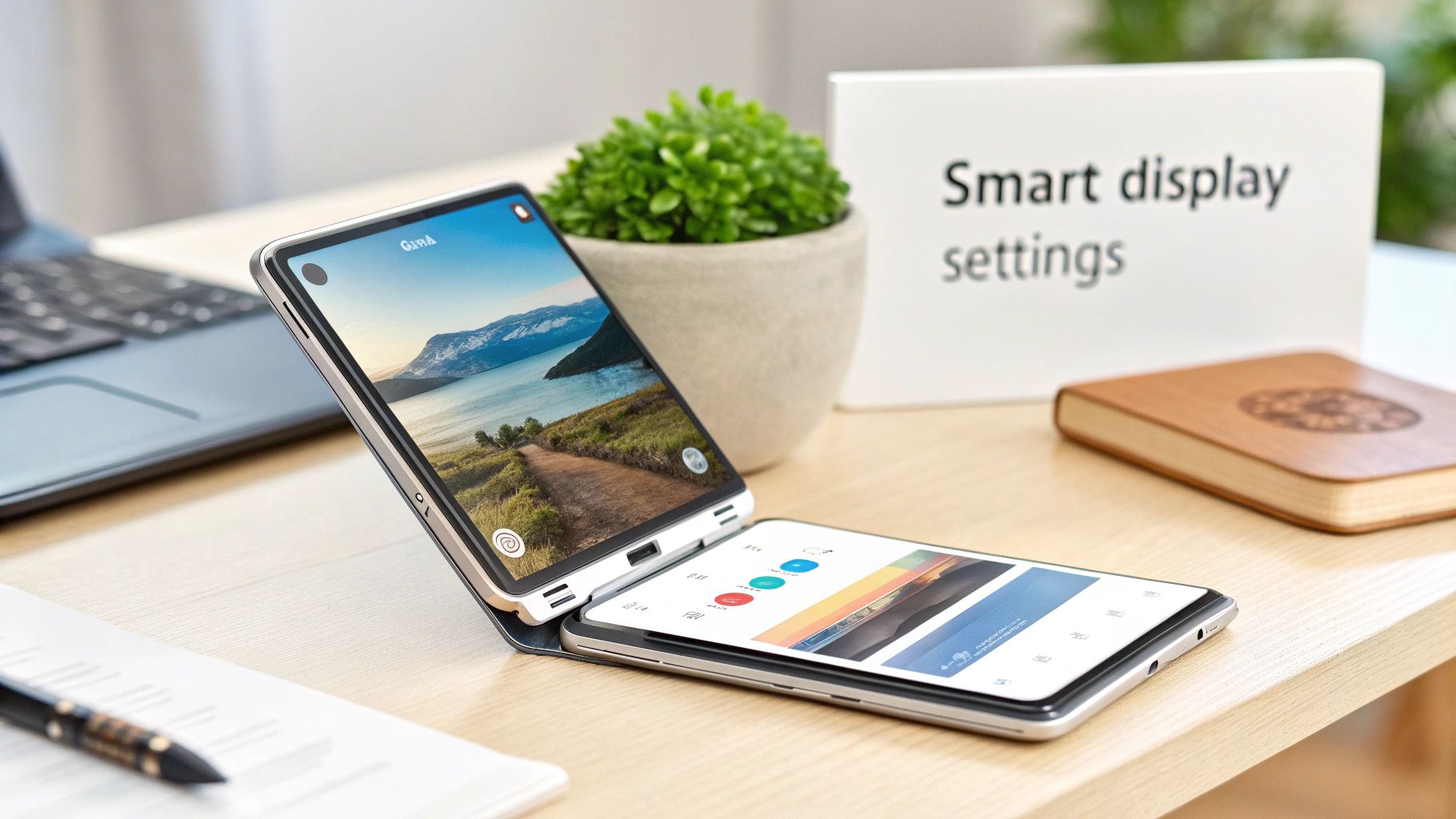
Let’s get right to it. That massive, beautiful screen on your foldable is its biggest power draw. We’ll kick things off with a few high-impact changes you can make right now to see a real difference. Forget the generic advice—this is tailored for devices like the Galaxy Z Fold and Pixel Fold.
These aren’t about crippling your phone’s best features. Instead, they’re small, intelligent adjustments that add up to big wins in battery life. Think of these as the foundation for becoming a true battery boss.
Taming the Brightness Beast
The single most effective change you can make is letting your phone manage its own screen brightness. A fully lit foldable display is stunning, but it absolutely demolishes your battery. Instead of constantly fiddling with the slider, just turn on Adaptive Brightness (or Auto-Brightness).
This setting uses the phone's ambient light sensor to automatically adjust the screen to a comfortable level. It keeps the display from blasting at full power indoors, which is where most people waste a ton of battery without even realizing it.
Did you know just lowering your brightness can save up to 20-30% more power? On high-res foldable screens, the display can be responsible for 40-50% of the total energy drain. You can discover more insights about smartphone power consumption and see how different models stack up.
Optimizing Your Refresh Rate
Foldable phones often come with buttery-smooth 120Hz refresh rates, but that fluid motion comes at a cost. Luckily, you don’t have to shut it off completely. Most modern foldables, especially the Galaxy Z Fold series, have an Adaptive refresh rate setting.
This is a game-changer. It intelligently drops the refresh rate when you’re looking at a static picture and cranks it up to 120Hz when you’re scrolling. You get a fluid experience when it matters and major power savings when it doesn't. It's the best of both worlds.
Pro Tip: If you’re on a long travel day or know you’ll be away from an outlet, manually switching to the 'Standard' (60Hz) refresh rate is a surefire way to gain a significant amount of extra screen-on time. The difference in smoothness is noticeable, but the battery boost is often worth it.
Setting a Smarter Screen Timeout
This one sounds almost too simple, but it’s incredibly effective. Every minute your screen stays on for no reason is just wasted battery. Most phones default to a minute or longer before the screen turns off.
Jump into your settings and change this to 30 seconds or even 15 seconds. This tiny tweak ensures the display shuts off the moment you set it down, preventing hundreds of unnecessary screen activations that add up throughout the day. It’s one of the easiest "set it and forget it" optimizations you can make.
Quick Wins for Immediate Battery Savings
If you're short on time, start here. These are the most impactful settings you can adjust right now for a noticeable improvement on your foldable.
| Setting | Recommended Action | Potential Battery Gain |
|---|---|---|
| Adaptive Brightness | Turn it ON. Let the phone manage brightness for you. | High (up to 20% savings) |
| Refresh Rate | Set to Adaptive (or Standard for maximum savings). | High (can add 1-2 hours of screen time) |
| Screen Timeout | Reduce to 30 seconds or less. | Medium (prevents cumulative drain) |
| Dark Mode | Enable System-Wide Dark Mode. | Medium (especially on AMOLED screens) |
Making these quick changes can give you a solid foundation for better battery life before you even dive into more advanced tweaks. They're simple, effective, and take just a couple of minutes to implement.
Unlocking Your Foldable's Built-In Battery Savers
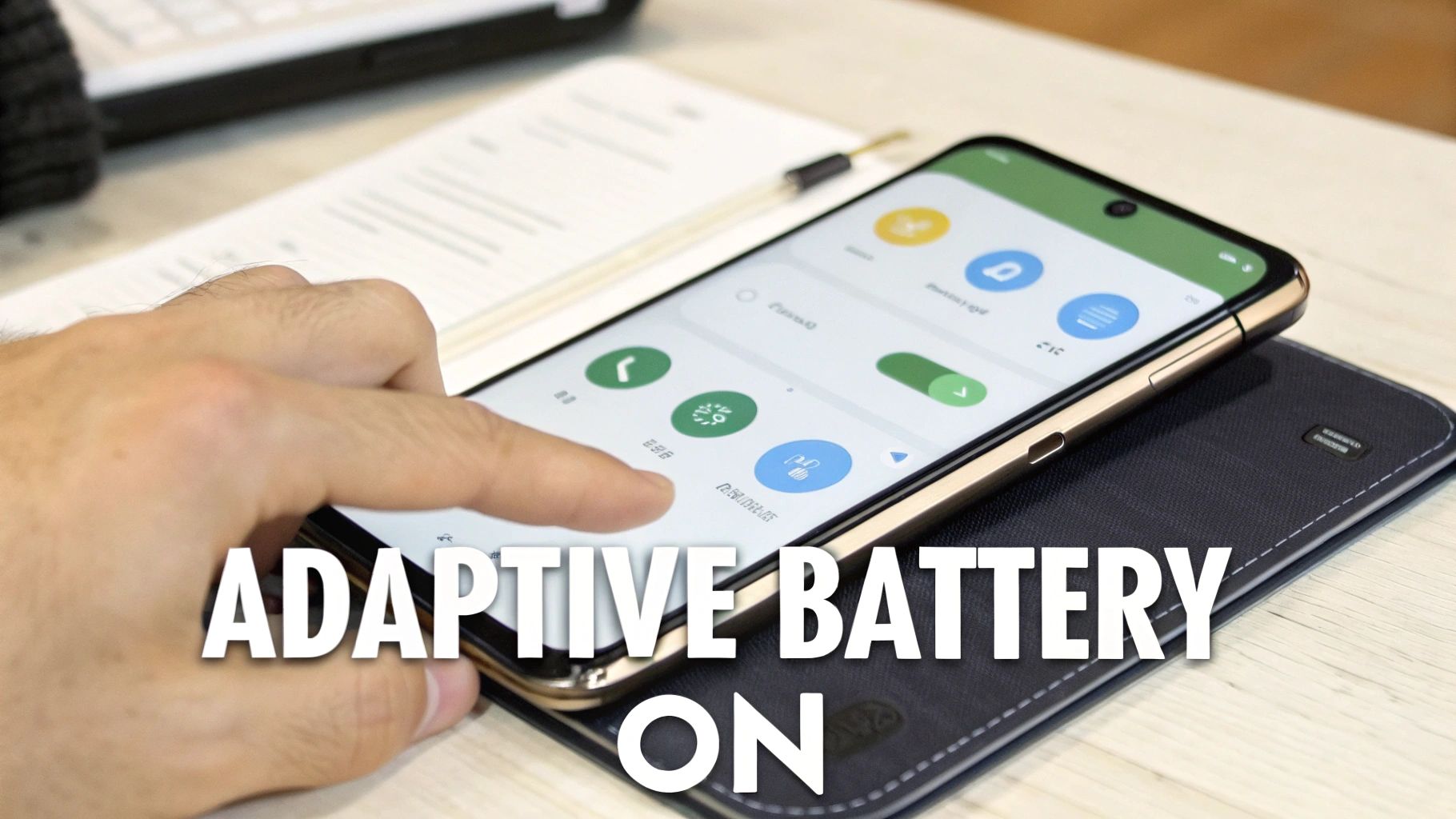
Your foldable phone is a marvel of engineering, but its most powerful battery-saving tools are often buried deep in the settings menu. Moving beyond simply dimming the screen, your phone’s operating system acts as a command center for power management. Learning how to extend phone battery life starts with mastering these features, and you can do it without hamstringing performance.
We’re going to dive into the specific battery menus you’ll find in Samsung's One UI and Google's software for the Pixel Fold. You'll see exactly how features like Adaptive Battery work in the real world and learn how to hunt down and neutralize the apps that are secretly killing your charge.
Master Your App Power Management
The number one culprit for unexpected battery drain? Apps running wild in the background. Both Samsung and Google give you incredibly detailed controls to stop this, but you need to understand the options to get real results.
Think of it this way: not every app needs to be active 24/7. Social media, news, and weather apps are notorious for constantly pinging servers and using your location, even when they're closed. This is where taking manual control becomes your biggest advantage.
Head into your phone’s battery settings, and you'll find a list of apps ranked by their power use. On Samsung devices, you have some powerful choices for each app:
- Sleeping apps: This is the perfect setting for apps you use fairly often but don't need running constantly. Putting an app to "Sleep" stops it from draining power in the background until you open it.
- Deep sleeping apps: Reserve this for apps you rarely touch, like an airline app you only need once a year. "Deep Sleep" is much more restrictive and completely shuts the app down in the background.
- Never sleeping apps: Use this one carefully. It's for critical apps you absolutely need to function without any interruption, like a work messaging app or a connected medical device.
By actively sorting your apps into these categories, you’re telling your phone exactly what’s important, ensuring only essential services get to draw power. Our complete guide offers even more tips to maximize your Galaxy Z Fold 4 battery life using these very settings.
Enable System-Wide Smart Features
Beyond wrangling individual apps, your phone has broader, AI-driven features that learn your habits to save power automatically. The most important one is Adaptive Battery. Once you turn it on, your phone starts learning which apps you use most and prioritizes power for them, while cutting back on resources for apps you use less.
It’s a true "set it and forget it" feature that gets smarter the more you use your phone. It figures out that you always check emails at 8 AM but never open that game you downloaded until after dinner. Based on that, it allocates power efficiently throughout the day.
Key Takeaway: Adaptive Battery is the bedrock of modern battery optimization. It works silently in the background, making smart decisions based on your personal usage to stretch every charge. Make sure it's on.
Another dead-simple tweak is activating Dark Mode. Foldable phones use OLED screens where every black pixel is literally turned off, consuming zero power. Switching to dark mode can save an average of 15% battery, but that figure can jump to a massive 47% at full brightness. If you're using your phone in different lighting conditions, combining dark mode with auto-brightness gives you the best of both worlds.
Fine-Tune Your Network and Connectivity
Finally, let’s talk about one of the biggest hidden power drains: your phone’s constant search for signals, especially in areas with bad service. A few quick adjustments here can make a world of difference.
If you’re in an area with a weak or spotty 5G connection, your phone will burn through its battery constantly switching between 4G and 5G. In those situations, manually setting your network mode to 4G/LTE gives you a more stable connection and saves a surprising amount of power.
You should also turn off settings like Wi-Fi scanning and Bluetooth scanning. These features let apps search for networks and devices even when Wi-Fi and Bluetooth are switched off—a pointless drain on your battery. By taking control of these OS-level features, you build a powerful, multi-layered strategy to get the most out of every single charge.
Smart Charging Habits for Long-Term Battery Health
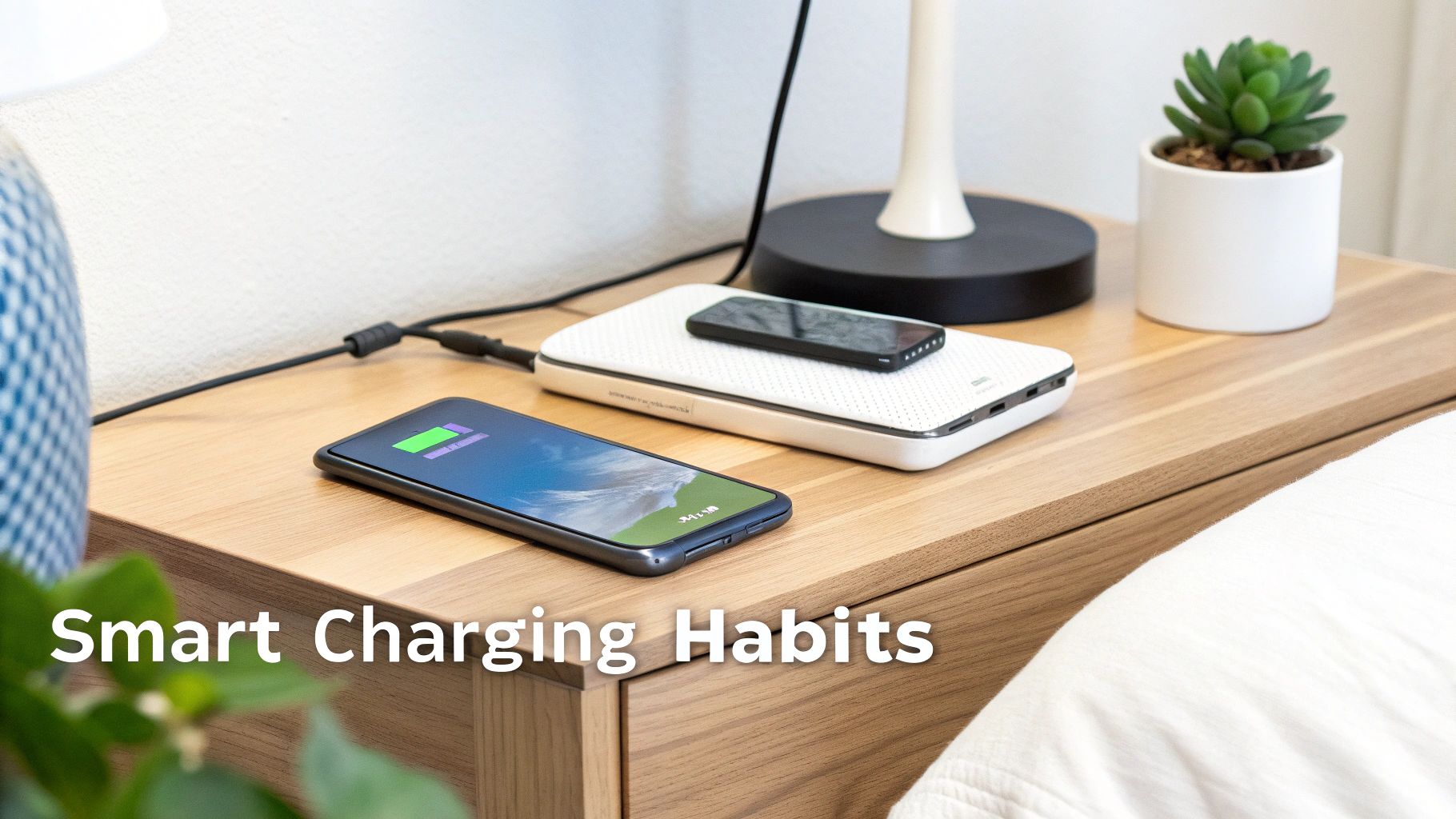
How you juice up your foldable is just as important as how you use it. Good charging habits aren't about following old, outdated myths; they're about making small, practical changes that protect your investment and keep your battery healthy for the long haul.
Think of your phone's battery like a muscle—you don’t want to constantly push it to its absolute limits. Jamming it up to 100% or letting it drain to 0% every single day puts a ton of stress on the lithium-ion cells inside. That constant strain is what wears them down, slowly killing your battery's ability to hold a decent charge.
The 20 to 80 Percent Sweet Spot
If there's one habit to adopt, it's this: try to keep your battery between 20% and 80%. This is the sweet spot. Keeping it in this range minimizes stress on the battery's chemistry, dramatically slowing down the natural aging process every battery goes through.
Pushing your battery to its extremes can accelerate its degradation by up to 25% each year. For a high-end device like a new Galaxy Z Fold, sticking to the 20-80 rule can easily stretch its effective battery lifespan from two years to three or even more.
Thankfully, manufacturers are making this easier. Samsung, for example, has a "Protect Battery" mode that automatically caps the charge at 85%. Flip that switch on, and you've got a set-and-forget solution that improves battery health without you having to think about it.
Slow Down Your Overnight Charging
Fast charging is a lifesaver when you're in a rush, but it’s overkill for overnight charging. The technology generates extra heat, which is the number one enemy of battery health. When your phone is going to be plugged in for eight hours while you sleep, there's absolutely no need to rush the process.
Expert Advice: Before you go to bed, hop into your settings and disable 'Fast Charging' or 'Super Fast Charging'. This allows the phone to charge slowly and coolly, which is much gentler on the battery over hundreds of cycles.
Most modern foldables have a simple toggle for this. A slow overnight charge is one of the easiest wins for ensuring you wake up with both a full battery and a healthier device. It's also worth looking into the best travel chargers for Samsung foldables, as certified options will better support smart charging features.
Manage Temperature During Charging
Heat is the silent killer of batteries. Lithium-ion cells hate extreme temperatures—both hot and cold—which can cause permanent damage to their capacity. Since charging naturally creates its own heat, where you charge your device becomes incredibly important.
Avoid these common battery-damaging mistakes:
- Never leave your phone charging on a hot car dashboard or in direct sunlight.
- Don't charge it under a pillow or thick blanket where heat gets trapped.
- Avoid playing intensive games or running demanding apps while it's fast charging.
These situations create a perfect storm of internal and external heat that will seriously cook your battery over time. It's also smart to understand how to properly charge your phone with a portable charger, as managing power and heat is even more critical when you're on the go.
Choosing Accessories That Support Battery Longevity
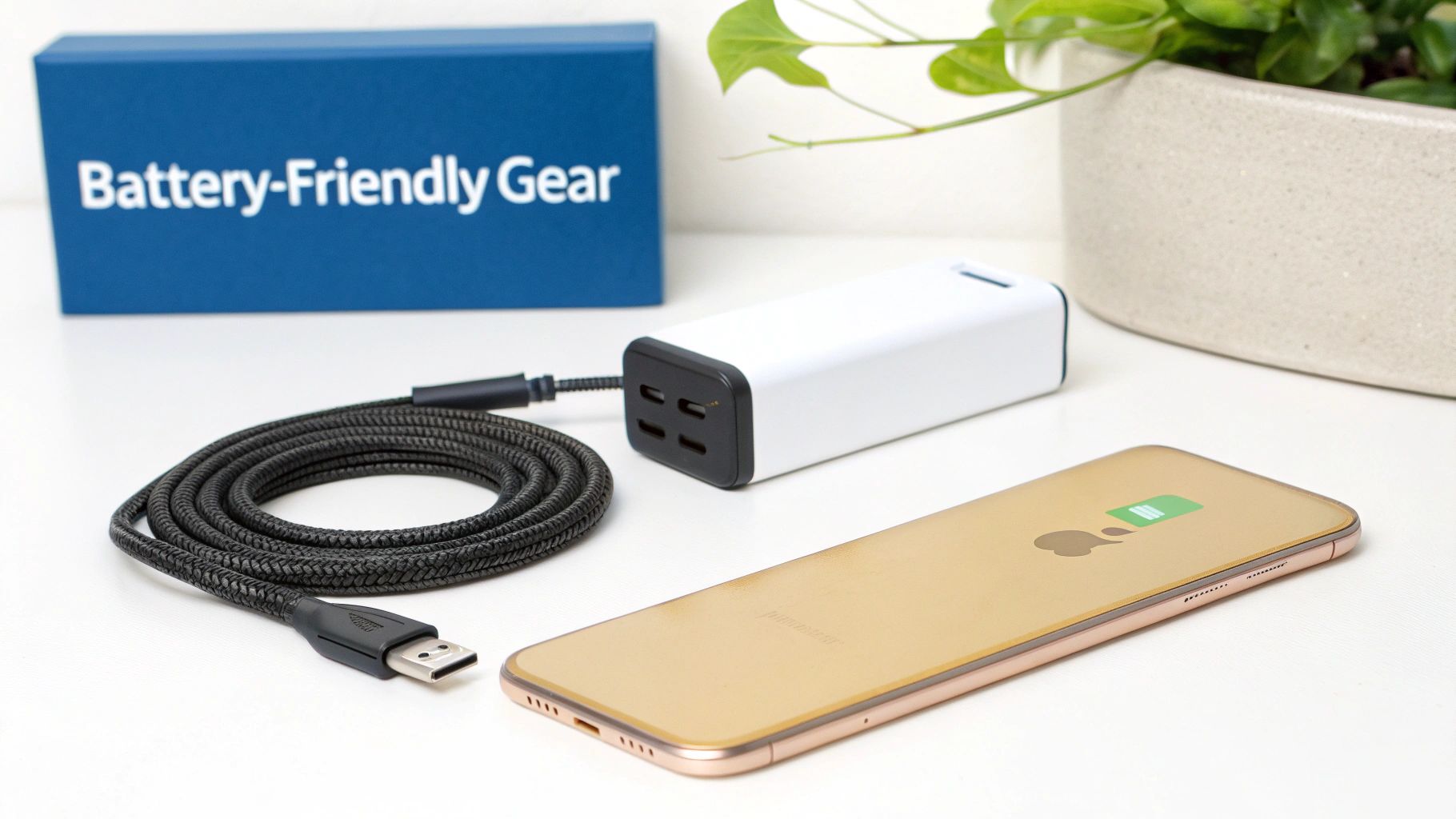
The gear you pair with your foldable phone does more than just work—it can actively support your device's long-term battery health. Choosing the right accessories is a huge part of any smart battery strategy. It’s about building an entire ecosystem that protects your investment, instead of causing slow, invisible damage.
It’s easy to just grab the cheapest cable or whatever charger is handy, but those choices often come with a hidden cost. A poorly made accessory can cause inconsistent power delivery, overheating, and accelerated battery wear. Let's walk through how to build a charging setup that actually enhances your phone's performance.
The Right Charger for the Right Moment
Not all charging situations are the same, and your choice of charger should reflect that. Think of it like having different tools for different jobs—one for speed and another for gentle, overnight maintenance. This approach aligns perfectly with smart charging habits that put battery health first.
A high-wattage charger, like a 45W power adapter, is the perfect tool for quick, strategic top-ups. If you only have 20 minutes before heading out, a powerful charger can get you back into that ideal 20-80% battery window without leaving it plugged in for hours. This is great for minimizing both charging time and the heat that comes with it.
On the flip side, a smart wireless charger is a fantastic option for overnight charging. These devices often deliver power more slowly, which means less heat buildup over a long period. Many modern wireless chargers also include safety features like temperature sensors and overcharge protection, giving you a gentler, cooler charge while you sleep.
Why Certified Cables and Mounts Matter
The charging brick is only half the equation; the cable is just as critical. Using cheap, uncertified cables is one of the fastest ways to damage your battery. They can fail to regulate power correctly, leading to voltage spikes and overheating that directly harm the delicate lithium-ion cells inside your phone.
Always opt for cables from reputable brands or those certified by the phone manufacturer. These products are built to strict standards, ensuring they can handle the power from fast chargers and communicate properly with your phone’s battery management system. A good cable is a small investment that protects a very expensive one.
Even your car mount can play a role, especially if you use GPS a lot. A mount that blocks your car's AC vents can cause your phone to get dangerously hot on a sunny day. Look for mounts that allow air to flow around the device, helping it stay cool during those processor-heavy tasks.
Key Insight: Heat is the ultimate enemy of battery longevity. Every accessory choice, from your charger and cable to your case and car mount, should be evaluated based on how well it helps manage temperature. Consistent overheating, even if minor, will permanently reduce your battery’s maximum capacity over time.
How a Phone Case Can Help or Hurt
A case is essential for protecting your foldable's complex hinge and beautiful screens, but its design can seriously impact thermal performance. A poorly designed case, especially one made from thick, insulating plastic, can trap heat and stop it from escaping. This is particularly damaging during charging or demanding tasks like gaming.
When choosing a case, look for one engineered with heat dissipation in mind. Materials like aluminum or those with thermal-conductive properties are excellent choices. Some cases even have vents or a minimalist design to promote airflow. You can explore options like an ultra-thin fashion case for Samsung that provides solid protection without trapping excessive heat.
To make the right choice, it helps to see how each accessory contributes to a healthier battery. This table breaks down the essentials.
Accessory Guide for Optimal Battery Management
| Accessory | Best Use Case | Battery Health Benefit |
|---|---|---|
| High-Wattage Charger (45W+) | Quick top-ups during the day | Minimizes total charging time and heat exposure by quickly getting you into the 20-80% zone. |
| Smart Wireless Charger | Overnight charging | Delivers power slowly, reducing heat buildup. Often includes safety features to prevent overcharging. |
| Certified USB-C Cable | All charging scenarios | Ensures stable power delivery and prevents voltage spikes that can damage the battery. |
| Ventilated Car Mount | GPS navigation and driving | Allows airflow to keep the phone cool during processor-intensive tasks, preventing thermal throttling. |
| Thermally Conductive Case | Daily protection | Helps dissipate heat during charging and heavy use, protecting the battery from long-term degradation. |
Ultimately, by thoughtfully selecting each accessory, you create a supportive environment for your phone. A powerful charger offers speed when needed, a smart wireless charger provides gentle overnight care, certified cables ensure safety, and a well-designed case helps keep things cool. Together, these elements form a complete strategy to preserve your battery's health for years to come.
Troubleshooting Sudden Battery Drain Issues
Even with the best habits, you might suddenly find your foldable's battery life in a nosedive. One day you’re cruising through your tasks with power to spare, and the next you’re hitting the red zone by mid-afternoon. It’s a frustrating experience, but it’s usually a sign that something specific has gone wrong.
Your first job is to become a battery detective.
Thankfully, your foldable phone has a built-in toolkit for this exact purpose. Buried in the battery settings is a detailed breakdown of which apps and services are guzzling the most power. This isn't just a list; it's a vital clue sheet that often points directly to the source of your problem.
Investigating the Usual Suspects
When your battery starts draining faster than usual, your first stop should always be the battery usage statistics. You can typically find this under Settings > Battery or Settings > Device Care > Battery. This screen will show you a graph of your battery level over the last 24 hours and a list of apps ranked by their power consumption.
Look for anything that seems out of place. Is an app you barely opened today sitting at the top of the list? That’s a massive red flag.
Often, a recent app update can introduce a bug that causes it to get stuck in a loop, consuming an enormous amount of power in the background. This is what we call a rogue app, and it’s a classic battery killer.
If you identify a culprit, you have a few options:
- Force Stop: The quickest fix is to force stop the app. This immediately halts all its processes.
- Clear Cache: Sometimes, corrupted cache files can cause an app to misbehave. Clearing the cache can resolve the issue without you losing any important data.
- Reinstall the App: If the problem persists, uninstalling and reinstalling the app can often fix deeper issues.
This systematic approach helps you isolate and neutralize the problem without resorting to a full factory reset.
Phantom Drain From Poor Signals
It's not always an app's fault. Sometimes, the problem is your environment. If you're in an area with a weak or non-existent cellular signal, your phone will work overtime trying to find and maintain a connection. This constant searching is a huge power drain and is often referred to as phantom drain.
You'll see this reflected in your battery stats, where "Mobile network standby" or "Cellular signal" is consuming a high percentage of your power.
Real-World Scenario: Imagine you're working from a basement office or a rural area with spotty reception. Your phone might lose 20-30% of its charge just sitting on your desk, doing nothing. The best solution in these cases is to turn on Airplane Mode and then re-enable Wi-Fi. This stops the cellular radio from desperately searching for a signal, saving a huge amount of power.
The Impact of Background Activity
Even well-behaved apps can become power hogs if their permissions are too generous. Apps with constant background location tracking and frequent push notifications are common offenders.
For example, apps like Facebook, Instagram, and even Google Maps are often among the top battery-draining apps on both Android and iOS. By simply disabling background app refresh and setting their location services permission to 'While Using,' you can cut their battery consumption by up to 40%. On a device like the Samsung Galaxy Z Fold 6, that simple tweak can add over an hour of extra screen time. You can read the full research about these power-hungry apps to learn more.
This is why it's so important to regularly audit your app permissions. Don't just grant every app access to everything it asks for. Being intentional about what an app can do in the background is a cornerstone of maintaining great battery life and a key skill in troubleshooting unexpected drain.
Your Simple Monthly Battery Health Checklist
Great battery life isn’t a one-and-done setting; it’s an ongoing habit. Think of this as a quick, 10-minute tune-up for your foldable each month to keep its battery in peak condition. It’s the easiest way to stay ahead of problems and maintain the endurance you need.
By investing just a little time, you ensure your phone keeps delivering reliable performance day in and day out. This proactive approach is one of the smartest ways to extend your phone's battery life over the long term.
Quick System Tune-Up
First up, a quick digital declutter. Start by clearing your device's cache, which gets rid of all the temporary junk files that build up and slow things down. You can usually find this option right in your device’s storage settings. It’s a simple click that frees up resources and often solves minor performance hiccups.
Next, do a quick audit of your app permissions. Every time you install an app, you grant it access to things like your location, microphone, and background data. It's time to review those choices.
- Review Location Access: Does that shopping app really need to know where you are 24/7? Switch as many apps as you can to "While Using the App" to stop them from tracking you in the background.
- Check Background Data: Restrict background data for apps that don’t need a constant connection. Think games or utility apps you only open occasionally.
This entire review takes just a few minutes, but it stops apps from silently draining power when you aren't even looking at your phone.
Monthly Mantra: A clean system is an efficient system. By regularly clearing out digital junk and revoking unneeded permissions, you prevent small issues from turning into major battery drains. It's a simple habit that keeps your device running smoothly.
Always Stay Updated
Finally, and this is probably the most important step, make it a habit to check for software updates. Developers are constantly releasing patches that fix battery-draining bugs and introduce new power-saving optimizations. It's not uncommon for a major OS update to improve battery efficiency by 10-15% just by managing background processes better.
Ignoring these updates means you're literally leaving free performance boosts on the table. You can learn more about why phone updates are essential for both security and battery health, but just know it's one of the most critical things you can do.
Frequently Asked Questions
Even with the best strategies, foldable phones come with their own unique set of questions. I get asked these all the time, so let's clear up a few of the most common ones to help you really master your device's battery life.
Does Using the Outer Screen on My Galaxy Fold Save Battery
Absolutely. That big, beautiful inner screen is the single biggest power hog on your phone, hands down.
Every time you default to the smaller cover screen for quick tasks—checking a notification, firing off a quick text, or answering a call—you're significantly cutting down on power use. Make a habit of it, and you can easily squeeze an extra hour or more out of your day without even trying.
Can a Heavy-Duty Protective Case Hurt My Battery
It definitely can, especially if it’s a cheap, poorly designed one. I’ve seen tons of bulky plastic cases that act like insulators, trapping heat and forcing your phone's processor to slow down. Over time, that constant heat buildup seriously degrades the battery. This gets even worse when you're charging or gaming.
Good cases, on the other hand, are built with materials designed to help dissipate heat, like aluminum frames or special thermal polymers. A well-engineered case protects your phone from drops and helps it breathe, which is just as important for its long-term health.
Key Insight: Heat is the number one enemy of battery health. A case that traps heat is actively working against you. Always pick protection that also considers thermal management.
If you want to get into the nitty-gritty of what’s inside your phone, it helps to understand the power source itself. A common question is: Do cell phones have lithium batteries? And what are the risks?. Knowing the tech makes it obvious why keeping things cool is so critical.
Is It Bad to Use My Foldable Phone While It Charges
It’s best to avoid anything intensive. Light stuff like browsing the web or texting is usually fine, but firing up a game or streaming video generates a lot of heat on its own.
When you stack that on top of the heat produced during charging, the temperatures can climb fast. This heat accelerates the chemical breakdown inside the battery. If you really need to do something demanding, just unplug it for a few minutes. Let the phone cool down, finish your task, and then plug it back in.
At FoldifyCase, we know the right accessories are a huge part of keeping your foldable running at its best. From thermally efficient cases to smart chargers, our entire collection is designed to protect your device without causing other problems. Find the perfect gear to support your battery health at https://www.foldifycase.com.
Article created using Outrank